


The Woodward easyYview series is an HMI solution designed
Product Overview
Product positioning: Provide remote control, monitoring, and visualization HMI solutions for switchgear manufacturers, generator set packaging companies, and others
Model classification: Three core models, with the following key parameters:
|Model | Screen size | Maximum number of connected devices (mini SCADA) | Resolution | Weight|
|EasyYview-07-030 | 7 inches | 3 units | 1024 × 600 | Approximately 2kg|
|EasyYview-10-150 | 10.1 inches | 18 units | 1280 × 800 | Approximately 3.9kg|
|EasyYview-15-150 | 15.6 inches | 18 units | 1920 × 1080 | Approximately 6.9kg|
Applicable scenarios: hospitals, data centers, offshore drilling platforms, landfill sites, biogas power generation, etc
Core functions and working modes
working mode
Remote HMI mode: Connect 1 easyYgen-3000XT/LS-6XT via VNC technology, supporting simultaneous display of 1-4 screens (7-inch 1 screen, 10 inch 2 screens, 15 inch/PC 4 screens)
Mini SCADA mode: connects multiple devices through Modbus/TCP protocol, provides system level visualization, and supports customized topology
Key Features
Support device cascading: Master/Slave configuration, enabling multiple easyYviews to share remote screens
Personalized customization: can modify logo, adjust bus color, configure main power data source, etc
Safety protection: IP66 dustproof and waterproof (front), in compliance with UL, CE and other certification standards
Installation and Configuration
Installation requirements
Installation personnel: must be qualified electricians and comply with 5 electrical safety rules
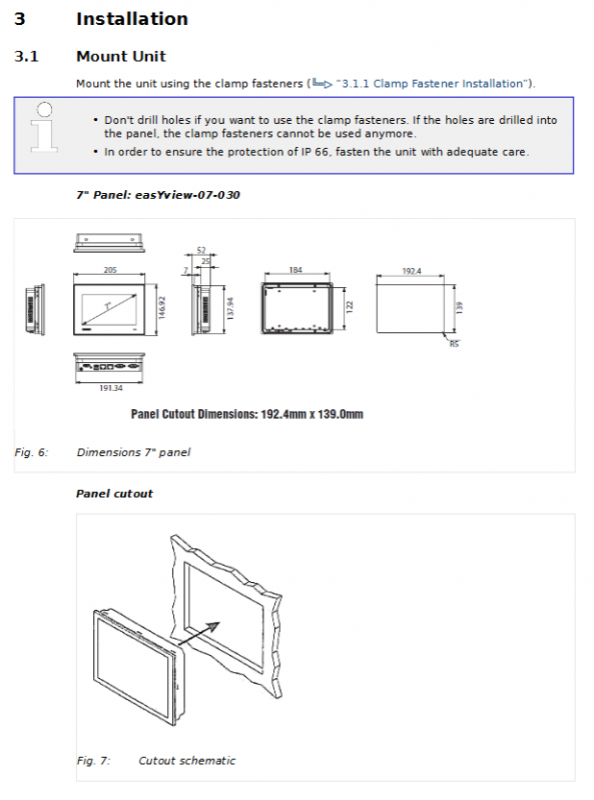
Hole size: 7 inches (192.4 × 139.0mm), 10 inches (274.1 × 193.3mm), 15 inches (411.9 × 261.2mm)
Connection interface: Only use LAN A Ethernet port and 24V DC power interface (± 20% voltage fluctuation)
configuration process
First setup: Connect to the network → Configure IP address (same subnet) → Select working mode → Set password (default user/user, recommended to modify)
Mode switching: Select mini SCADA/Remote HMI through the settings page, click “Apply” to take effect
Device connection: Mini SCADA mode requires configuration of Modbus slave ID (parameter 3188) and protocol (5016)
Technical specifications
Hardware specifications
Processor: NXP ARM Cortex-A53 i.MX 8M Mini (4-core 1.6GHz)
Storage: 2GB DDR4 RAM+16GB eMMC
Touch screen: Projection capacitive, 10 point touch, light transmittance ≥ 85%
Working environment: Temperature -20~60 ℃, vibration protection 2 Grms (5-500Hz)
software configuration
Operating System: Linux Yocto 3.3 (Woodward Custom Edition)
Third party software: atvisa builder 3.9.1, WebVNCServer, etc
License restrictions: 7-inch supports 30 CCDs, 10/15 inch supports 150 CCDs
Troubleshooting and Safety Guidelines
Common faults and solutions
|Fault phenomenon | Cause | Solution|
|The screen is black but the blue LED is on | Display malfunction | Contact Woodward service partner|
|Mini SCADA page element flashing yellow | Device connection failure | Check IP address and Modbus configuration|
|CCD exceeded! “Pop-up window | Number of data connections exceeded | Switch to PC mode and close unnecessary browsers|
|Remote connection interruption | Network conflict or VNC port occupation | Check for IP conflicts and release occupied ports|
Safety Rules
Unauthorized personnel are prohibited from operating or modifying the equipment
Cut off the power before operation to avoid electrostatic discharge
Prohibit the use of non certified spare parts or unauthorized modification of equipment
Key issue
Question: What is the core difference between the two working modes of the easyYview series (Remote HMI and mini SCADA)?
Answer: The core difference lies in the connection method and application scenario. Remote HMI mode connects one easyYgen-3000XT/LS-6XT through VNC technology, focusing on detailed control and parameter viewing of a single device; The mini SCADA mode connects multiple devices (up to 3 for 7-inch and up to 18 for 10/15 inch) through Modbus/TCP protocol, focusing on system level overall monitoring and topology visualization, and supporting parallel status display of multiple devices.
Question: What are the key requirements to pay attention to when installing the easyYview device?
Answer: Three core requirements need to be considered. One is personnel qualification, which must be operated by qualified electricians and comply with electrical safety rules; The second is hardware connection, using only LAN A Ethernet port and 24V DC power interface to avoid electrostatic discharge; The third is the installation size, which needs to be drilled according to the corresponding model (such as 192.4 × 139.0mm for 7 inches), and after tightening, ensure the IP66 protection level.
Question: What are the possible causes and solutions when the “CCD exceeded!” pop-up appears in easyYview?
Answer: The reason is that the number of data connections (CCD) in mini SCADA mode exceeds the license limit, mostly due to opening the visualization page in both easyYview and PC browser simultaneously. Solution: One is to switch to PC mode on easyYview (only using 1 CCD); Secondly, close any unnecessary browsers on the PC or refresh the page to reconnect; Thirdly, if the issue persists, close the PC browser and restart the easyYview device.


