SCHNEIDER Back-UPS ™ Pro 550/900/1200/1500 230V Installation and Operation
The installation and operation manual for APC by Schneider Electric Back UPS Pro 550/900/1200/1500 230V series UPS covers five core modules: safety specifications, hardware connections, functional configuration, fault diagnosis, and after-sales service. It specifies that the UPS needs to be used indoors and supports core functions such as battery backup (the longest endurance depends on the model), surge protection, and automatic voltage regulation. Power saving, sensitivity, and other parameters can be configured through the front panel button or PowerChute software. The battery life is usually 3-5 years. In case of a fault, the problem can be located through the fault code, and official after-sales maintenance should be contacted. Different models correspond to specific replacement batteries (such as BR550GI corresponding to APCRBC110)
Safety and Installation Standards
(1) Safety requirements
Usage environment: For indoor use only, avoid direct sunlight exposure, contact with liquids, excessive dust, or environments with excessive humidity.
Power connection: The UPS power cord should be directly plugged into a wall socket, and the use of surge protectors or extension cords is prohibited.
Heat dissipation requirements: The ventilation openings must not be obstructed, and sufficient space should be reserved to ensure normal heat dissipation.
Battery Attention: The battery life is usually 3-5 years. High ambient temperatures, poor power quality, and frequent short-term discharges can shorten the lifespan.
(2) Hardware connection
Connection type operation instructions applicable to devices
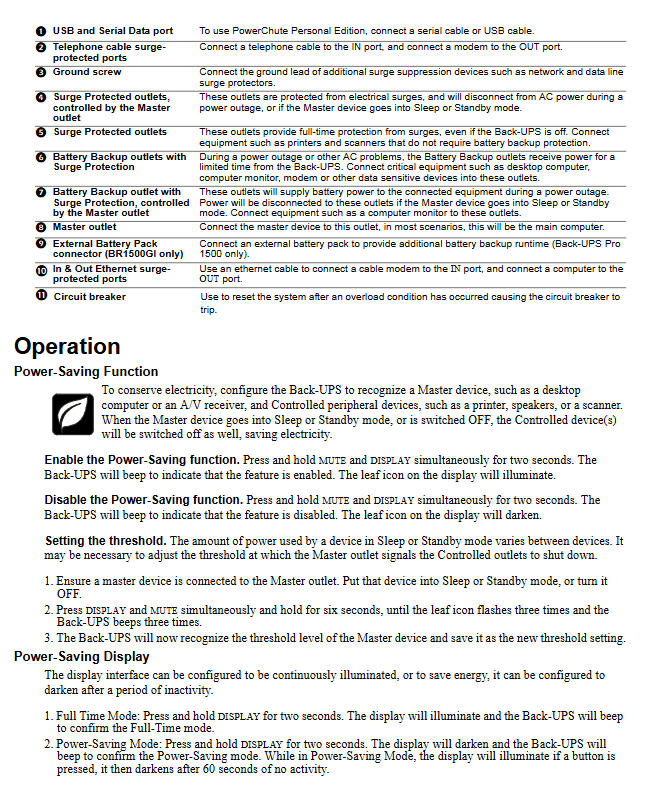
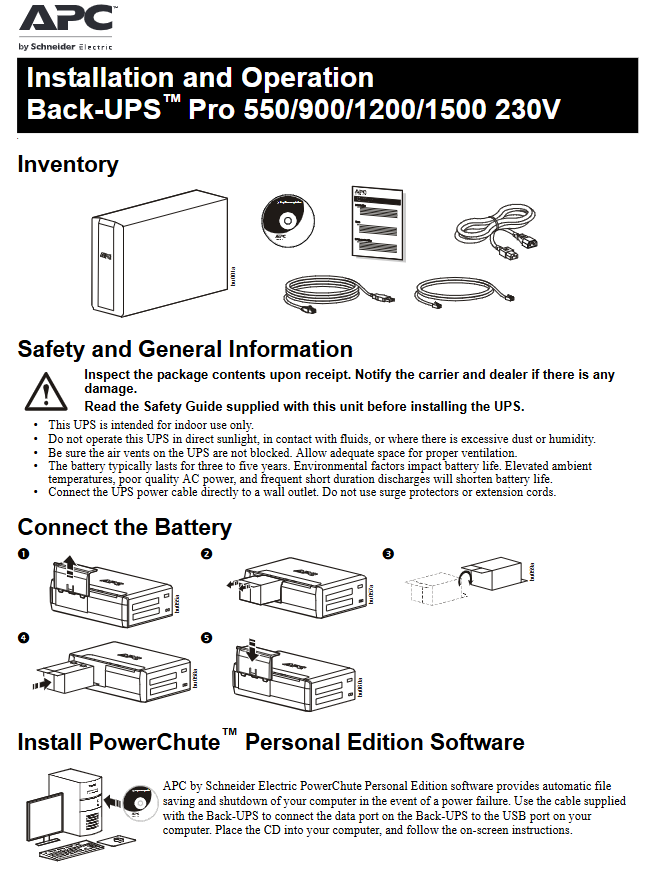
Battery connection: Follow the manual instructions to complete the installation of the built-in battery (some models are pre installed at the factory) for all models
Connect critical devices (computers, monitors, modems) to “Battery Backup outlets”, and non critical devices (printers, scanners) to “Surge Protected outlets” for all models
Connect the data port of UPS to the USB/serial port of the computer using the matching cable for data connection, and install PowerChute software (to achieve automatic file storage and shutdown) for all models
Expand the connection of the telephone line to the “Telephone In” port, and connect the modem to the “Telephone Out” port; Ethernet cable connected to “Ethernet In”, computer connected to “Ethernet Out” (only supports 10/100/1000BASE-T) for some models (such as BR550GI/900G-FR)
Ground Screw “BR1200GI/1500GI, BR1200G-FR/1500G-FR for additional surge suppression equipment grounding connection
External battery connection BR1500GI/1500G-FR extends battery life by connecting the external battery pack through the “External Battery Pack connector”
Core functions and configurations
(1) Power saving function
Enable/Disable: Long press the “MUTE” and “PLAY” buttons on the front panel for 2 seconds, the UPS beeps and the “leaf icon” on the display screen lights up/goes out to indicate whether the function is enabled/disabled.
Threshold calibration: When the main device (such as a computer) is in sleep/shutdown mode, long press “MUTE” and “PLAY” for 6 seconds, the leaf icon will flash 3 times and beep 3 times to complete threshold saving (adapted to different device sleep power consumption).
(2) Display mode configuration
Mode Type Operation Method Function Description
Long press and hold “PLAY” for 2 seconds in constant light mode, and the display screen will continue to light up with a beep confirmation
Power saving mode: Long press and hold “PLAY” for 2 seconds without any operation. After 60 seconds, the display screen will darken. Press any button to restore brightness
(3) Sensitivity adjustment
Operation steps: 1 UPS connected to AC power but turned off; 2. Long press “POWER” for 6 seconds, and the “LOAD CAPACITY” indicator light will flash to enter programming mode; 3. Press “POWER” to switch between low/medium/high sensitivity and beep to confirm.
Sensitivity Description: Low sensitivity (switching battery when input voltage is extremely low, not recommended for computer loads), medium sensitivity (default, suitable for most devices), high sensitivity (suitable for voltage fluctuation sensitive devices, frequent battery switching).
(4) Other key operations
Notes on Function Operation Methods
Manual self-test: Press and hold “POWER” for 6 seconds to automatically perform a self-test when the device is turned on
Silent alarm. Short press “MUTE” to only turn off the alarm triggered by the current event
When clearing the event count display event interface, long press “PLAY”+short press “POWER” to clear only the AC fault counter
Fault reset: Long press “POWER” for 2 seconds to clear the visual prompt of the fault and restore standby mode
Status indication and troubleshooting
(1) Sound warning and status icon
Suggestions for handling the corresponding status of sound prompts
Every 30 seconds, there are 4 battery powered sounds to save the current work progress
Continuous buzzing, low battery, immediately save work, close applications and operating systems
Continuous beeping, battery backup output overload, disconnection of non essential equipment
Every 5 hours, beep for 1 minute. Battery diagnosis fails. Replace battery
Suggestions for handling the meaning of status icons
Overload (flashing) When AC power is supplied, overload and disconnect non essential equipment until the icon goes out
Overload (always on) When the battery is powered on, unload the device immediately to avoid battery damage
Replace Battery Failure/End of Life Replace the corresponding model battery
On Battery: The battery is supplying power. Please restore AC power or save data as soon as possible
(2) System fault code
Fault code, fault type, and handling method
F01 battery power overload shutdown → disconnect non essential equipment → restart UPS
F02 battery output short circuit shutdown → Disconnect all devices → Reconnect one by one to locate the faulty device
F03-F09 capacitor overload/clamp short circuit/charging fault cannot be handled by oneself, contact official technical support
(3) Common problem troubleshooting
Possible causes and solutions for the problem phenomenon
UPS cannot start up, AC power not connected/circuit breaker tripped/battery not connected. Check power connection → reset circuit breaker → confirm battery installation
After a power outage, if there is no backup power supply device, connect it to the wrong socket (plugged into the surge protection port) and move the critical equipment to the battery backup socket
Backup battery life shorter than expected, non essential devices occupying battery load/battery not fully charged, unloading non critical devices → charging for 16 hours → checking battery status
Some sockets have no power supply and the power saving function is enabled. The controlled sockets have been turned off and the power saving function is disabled or the threshold is recalibrated
The battery replacement indicator light is on. When the battery life expires, replace the backup battery of the corresponding model (such as APCRBC124 for BR1500GI)
Product specifications
Model Capacity (VA) Maximum Load (W) Input Voltage Range (V) Typical Charging Time (hours) Conversion Time (maximum)
BR550GI 550 330 176-282 12 8 ms
BR900GI 900 540 176-294 8 10 ms
BR1200GI 1200 720 176-294 8 10 ms
BR1500GI 1500 865 176-294 8 10 ms
BR900G-FR 900 540 176-294 8 10 ms
BR1200G-FR 1200 720 176-294 8 10 ms
BR1500G-FR 1500 865 176-294 8 10 ms