Eaton MTL F809F Plus DTM Operating Instructions
Product and DTM Overview
Hardware capability: F809F Plus can monitor up to 8 FF fieldbus segments; Measure network segment voltage, multi band noise (average/peak of low frequency, in band, and high frequency), device signal amplitude, message retransmission frequency/retransmission rate, number of online devices, LAS link activity scheduler information; Detect physical layer faults such as bus to shielding layer short circuits.
The three core functions of DTM are Diagnosis, Compare, and Export; Additional printing of reports, downloading of parameters, and automatic optimization of alarm thresholds through the wizard.
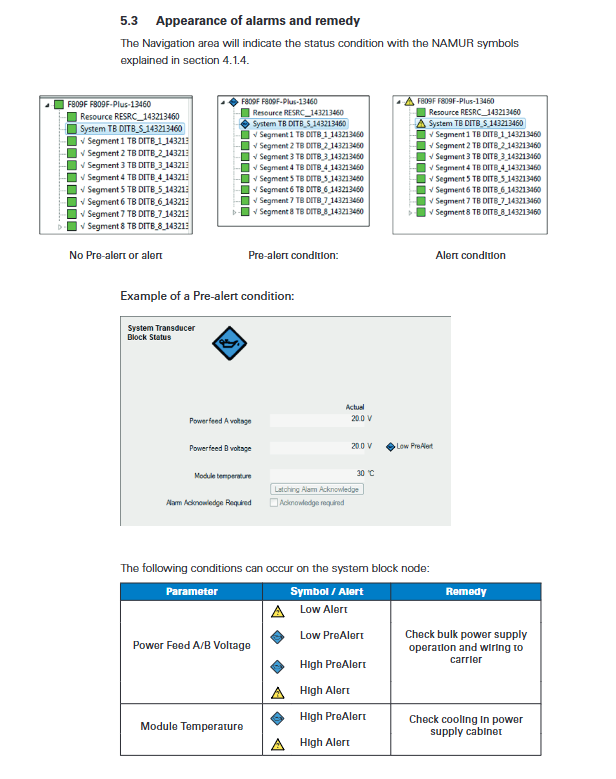
Alarm follows NAMUR NE107 specification:
Green: Normal with no alarms
Blue (oil pot icon): Pre alert, requiring maintenance of PreAlert
Yellow Triangle: Over limit Alert (Out of Specification)
Hierarchical alarm propagation: single device failure → corresponding network segment alarm → module root node alarm; Folding the tree nodes still allows you to see the lower level fault markers, expand to locate the root cause.
DTM software installation and startup
Download the installation package from the MTL official website, unzip and run the setup. exe file; After installation, the FDT device directory needs to be refreshed to see the devices.
Startup method: Select F809F-Plus device in DCS or independent FDT framework and call DTM.
Go online automatic upload: Real time data of hardware modules is read into DTM without covering the working dataset being edited by the user; Manually uploading will synchronize both the instance dataset and the working dataset simultaneously; The upload command will be ignored during the download task.
Refresh cycle: Modify the CyclicParameterReading time (in ms, default is 10000, which is 10 seconds) in the installation directory XML \ DmSettings. xml.
DTM interface with two major tabs
Tag page purpose
Diagnosis: Read only view measurement values and alarm status; Cannot modify threshold; Support Radar Overview Graph Overview
Configure/Set: View and modify alarm upper and lower limits, block mode; Run the Configuration Wizard Wizards
Interface partition:
Navigation area: Tree level: Resource resource block → System TB system conversion block → Segment 1-8 network segment block → Device of each field device under the network segment
Application display area: parameter table, graphic view
Bottom action buttons: Apply, Apply&Close, Cancel, Up/Down Node Jump, Go To Device/Go To Segment Quick Jump
Status bar: connection status, data set tags; The pencil icon represents local modifications that have not yet been downloaded to the hardware; The question mark represents that the value has not been refreshed and has expired.
Resource block: Only visible in Configure/Setup, set module working mode and hardware version information.
Three major configuration methods (fully supported by system/network segment/device)
Manual configuration: manually enter alarm thresholds one by one; Advantages: Adapt to real working conditions on site; The disadvantage is that the engineering workload is large. If it is not uploaded from the equipment, the DCS database and hardware parameters will be inconsistent, and the download will overwrite the hardware.
DCS template configuration: DCS engineering station issues templates uniformly; Advantages: Unified database; Disadvantage: All network segments share a set of thresholds, and different network segments have different characteristics, so the alarm margin must be amplified.
Wizard (recommended): The module automatically calculates and generates alarm thresholds based on the current actual measurement values; Balancing adaptability to on-site working conditions and efficient operation; It is recommended to restore the default high and low limits before executing the wizard.
Parameter constraint rule: Low Low ≤ Low<High ≤ High High High; High must be at least 1V larger than Low; hardware only retains one decimal place, and inputting multiple decimal places in DTM will result in pencil mark differences.
System TB system conversion block (whole machine level)
Responsible for module body and redundant bus power management, not specific to individual network segments.
4.1 Diagnostic measurement items
Power feed A/Power feed B: Two bus supply voltages (redundant power supply)
Module Temperature: F809F Plus module internal temperature, approximately representing the temperature of the power cabinet
Latching Alarm Acknowledgment: After enabling the latch, the alarm flag remains even if the fault disappears. It must be manually confirmed and cleared to capture momentary occasional faults.
4.2 Main configuration items
Set Monitored Segments: Check the 1-8 network segments that need to be monitored, and cancel scanning for unused segments to reduce load.
Set Non scanning Segment Values to null: Display null values for non scanning segments instead of retaining old measurement data. It is recommended to check this option.
Set Alarms to Latch: Set which network segments to enable latch alarms.
4.3 System Built in Wizard Button
Reset retry counters: selectively reset all/a certain network segment/a certain device retransmission counter.
Delete history data: Delete the entire machine, specified network segment, and specified device’s historical measurement records.
Set date time: Synchronize the module time to the host computer time (the manual states that this function is reserved, and timestamps were not used in the current version).
Alarm Limits Optimization: Automatic Optimization Wizard for Power Supply Voltage Alarm Threshold.
Reset Measurement Processor: Reset the measurement processor, ⚠️ The Tag tag will be cleared, and after resetting, the tag parameters need to be downloaded again.
Common system alarms and their handling
table
Troubleshooting measures for alarm object phenomena
Pre warning/alarm for high and low power supply voltage Power feed A/B limit inspection Bus power module, power supply wiring
Module temperature high warning/alarm Module Temperature exceeding upper limit inspection Control cabinet cooling and ventilation
Segment TB segment conversion block (single segment)
Each network segment has an independent conversion block, which is the core of the FF physical layer for troubleshooting.
5.1 Measurement Parameters
Segment voltage: segment bus voltage;
LAS tag/LAS address/LAS signal level: Link activity scheduler tag, address, signal amplitude;
Lowest signal level: The device with the lowest signal amplitude within the network segment and its address label;
Total retromissions, retromission rate on segment: total number of transmissions and retransmission rate in the network segment;
Noise is divided into average and peak values, and is divided into three frequency bands:
There is only an upper limit alarm for noise, and the lower the noise, the better; The average noise represents persistent interference, while the peak represents occasional spike interference (lightning strikes, frequency converter start stop, welding).
Low frequency noise 25Hz-3.8kHz
In band noise 5-55kHz (FF operating frequency band, most important)
High frequency noise 90-350kHz
Number of devices on live list: The number of live devices on the network segment;
Fault detection: Short to shield+/- ve on the shielding layer.
5.2 Graph Overview (All in One Radar Overview)
Visualize all key indicators of the network segment in one go using radar charts;
Green Zone: Normal Safety Zone;
Blue: Pre alert (maintenance required);
Yellow: Over limit alarm (exceeding specifications); The black polygonal line represents real-time measurement values, and intrusion into the colored area indicates the triggering of corresponding parameter alarms.
5.3 Network segment wizard function
Reset Retransmissions Count: Reset the retransmission counter for this network segment (without resetting the sub devices)
Alarm Limits Optimization Alarm Threshold Optimization Wizard
Step 1: Select the actual FF bus power supply model used on site (F101/F102/F801/F802/F6xx, etc., choose Custom for custom power supply);
Step 2: Configure whether adding or removing devices triggers an alarm; Allow temporary access of handheld communicators without alarm;
Step 3: Set the signal amplitude threshold floating percentage (default 40%, take 75%~125% of the current signal as the alarm boundary, recommended by the project);
Step 4: Automatically calculate the upper limit of noise alarm.
Network segment troubleshooting guide (abstract)
Voltage alarm: Check the bus power supply, wiring, and terminals;
High in band noise: interference from frequency converters, poor shielding grounding, parallel laying of power cables and bus cables, welding operations;
Increased retransmission rate: water ingress into the connector, damaged shielding, incorrect number of terminators;
Online device quantity change alarm: device disconnection, handheld communicator connection, cable water ingress;
Bus to shield short circuit: Check the cable stripping process, ensure that the shielding layer does not touch the signal line, and check for water ingress in the junction box.
The physical layer standard IEC 61158-2 states that the maximum noise within the anti-interference band of the FF receiver is 75mV. The average noise during normal operation of the project is generally less than 20mV.
Device device node (every FF field device in the network segment)
After expanding each network segment, all devices in that segment will be marked as [LAS] by LAS devices.
Equipment diagnostic parameters
Device address, supports decimal/hexadecimal switching display;
Device tag device tag;
Signal level: The signal amplitude of the message sent by the device is 550-1200mV under standard operating conditions;
Retransmissions, Retransmission rate: The device’s message retransmission count and retransmission rate; The retransmission rate is a key indicator for evaluating the communication health of a single device, with a default warning upper limit of 0.1%.
The retransmission rate calculation is divided into three stages. When there are few samples just after power on, the calculation will be smoothed to avoid false alarms. After collecting enough Pass Token messages, the sliding average value will be output.
Device Configuration
Set device tag tags;
Set signal amplitude high and low alarm limits;
Set retransmission frequency and retransmission rate alarm thresholds;
Wizard: Reset Retransmissions Count, only reset the device’s retransmission count; In the latch alarm mode, reset the count and clear the corresponding alarm.
Typical equipment malfunction
Signal level too low: loose branch cable joints, water ingress;
The retransmission rate of a single device has skyrocketed: focus on checking the branch lines of the device;
Multiple devices experiencing signal degradation simultaneously: investigate the backbone cables, network segment terminators, and bus power supply.
DTM universal tool functions
Upload/Download
Automatic upload: online execution, updating instance dataset without changing the working dataset in editing;
Manual upload: Hardware → DTM, synchronize instance+working dataset;
Download: DTM working dataset written to F809F Plus hardware module.
Compare: Compare the current online parameters with the previously exported XML archive, suitable for baseline comparison and post fault tracing during operation.
Export: Export all module parameters and alarm limits to an XML file for archiving, baseline saving, and comparison function to read the file.
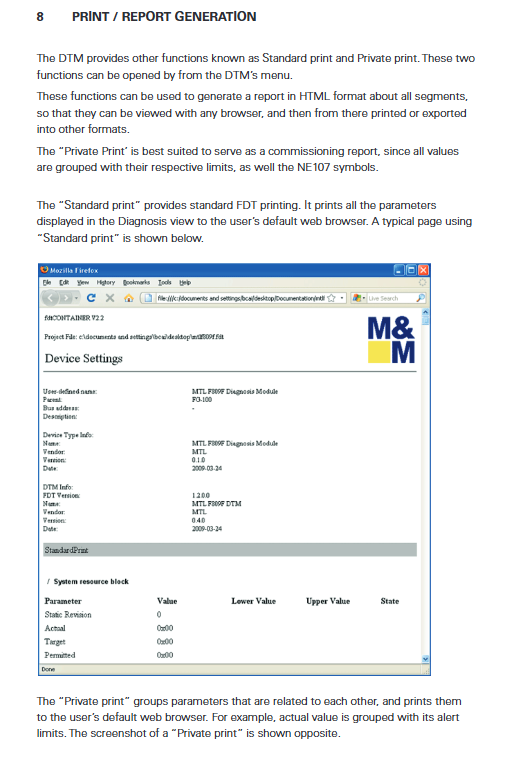
Print report printing
Standard print: Standard FDT format HTML report;
Private print: Debug the operation report format, match the actual measurement values, alarm limits, and NAMUR status symbols one by one, suitable for acceptance and archiving.
Trending trend: The trend function does not belong to DTM itself; Implemented by upper level FDT/asset management software.
Close DTM: Wait for all communication sessions to complete before closing, do not forcefully terminate the process.