Mitsubishi DIASYS Nettation MODBUS TCP Driver Instructions
Core Overview
Purpose: To explain the Ethernet MODBUS TCP communication connection, configuration, address, and error handling between Pro face touch screens and Mitsubishi Heavy Industries DIASYS Netmation system
Applicable Products
Upper level: Pro face touch screen (does not support GP-4100 monochrome models)
Lower level: Mitsubishi Heavy Industries Netmation CPU Controller
Communication method: MODBUS TCP/Ethernet
Configuration tool: GP Pro EX (software configuration)+touch screen offline mode
1 System Configuration
1. Support connection types
Only supports Ethernet (TCP) interface, based on MODBUS TCP protocol.
2. Supported network topologies (very comprehensive)
1: 1: Single screen ↔ Single CPU/Dual CPU Redundancy
1: N: Single screen ↔ Up to 16 Netmation CPUs
n: 1: Up to 16 screens ↔ Single CPU/Dual CPU Redundancy
n: M: Multi screen ↔ Multiple CPUs (mixed single/dual redundancy)
Support single CPU+dual CPU redundant hybrid networking
3. Redundant architecture
Supports dual machine redundancy of Netmation primary CPU and secondary CPU.
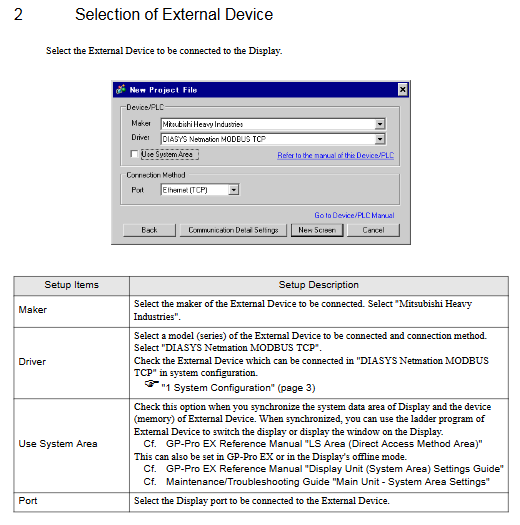
2 Selection of External Devices
When creating a new project in GP Pro EX, you need to choose:
Manufacturer: Mitsubishi Heavy Industries
Driver: DIASYS Netmation MODBUS TCP
Port: Ethernet (TCP)
Use System Area: Check to synchronize the screen system area with the controller memory (for screen switching, etc.)
3 Example of Communication Setting
1. Key default parameters for the touch screen end (GP Pro EX)
Port number: 59710
Maximum number of connected devices: 16
Main CPU IP: 192.168.1.1
Backup CPU IP: 192.168.1.2
Control mode check: CDO (for redundant state monitoring)
Double word order: Low word first
2. Controller end
Use Mitsubishi Heavy Industries Netmation dedicated software to configure IP, ports, and control status addresses.
3. Attention
The IP address needs to be confirmed with the network administrator and cannot be duplicated
The IP address of the touch screen itself needs to be set in offline mode
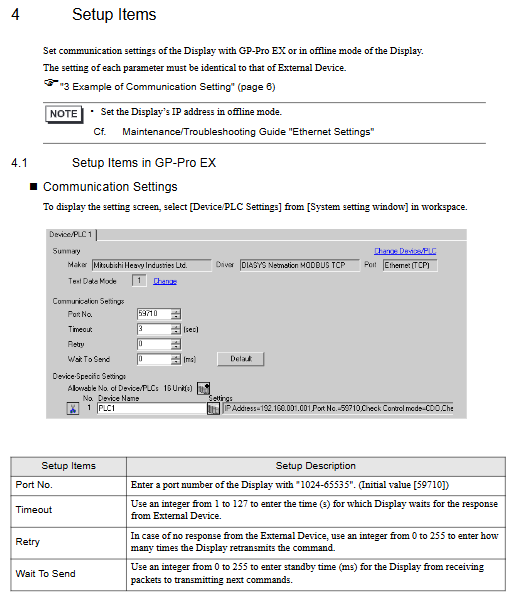
4 Setup Items
It is divided into two categories: GP Pro EX software settings and touch screen offline settings, and the parameters must be consistent with the controller.
1. General communication parameters
Port No.: 1024~65535, default 59710
Timeout: 1-127 seconds
Retry: 0-255 times
Wait To Send: 0~255 ms
2. Device exclusive settings
Primary/Secondary CPU: IP and port of the primary/backup CPU
CPU Redundancy: Check to enable redundancy
Check Control mode: Specify CDO address to monitor CPU running status (1-second cycle query)
Double Word order: Low word priority/High word priority
5 Supported Device Address
Supports four types of addresses, with a fixed address range. The actual available range is subject to the Netmation manual:
Type symbol bit Address word Address 32-bit permission
Digital output CDO 0001~8000 0001~7985- writable
Digital input CDI 0001~8000 0001~7985 supports read-only
Analog output CAO-0001~4000- writable
Analog input CAI -0001~4000 supports read-only
6 Device Code&Address Code
When selecting “Device Type&Address” on the touch screen, use:
Calculation method for device equipment code (HEX) address code
CDO 0080 (Address -1)/16
CDI 0081 (Address -1)/16
CAO 0000 Address -1
CAI 0001 Address -1
7 Error Messages
1. Incorrect format
Error number: Device name: Error message (error location)
2. Standard MODBUS error codes
01: Function codes are not supported
02: The address does not exist
03: Invalid data
3. Driver specific error (important)
RHxx128: There are two main CPUs present
RHxx129: No main CPU
RHxx130: Number of nodes exceeds the upper limit (maximum of 16)
Shorthand of the core points of the entire text
Protocol: MODBUS TCP
Port: 59710
Maximum connection: 16 controllers/16 screens
Support redundancy: dual CPU hot standby, monitoring status through CDO address
Address: CDO/CDI (switch quantity), CAO/CAI (analog quantity)
Not supported: GP-4100 monochrome screen
Configuration: Both GP Pro EX and offline mode can be set